A 30-second montage can drift off the beat even when each cut looks fine in isolation. Start by finding one clear downbeat in the part of the music you will use. Then set a few markers across the edit and check a late marker against the track. That second check tells you whether you can trust the spacing for the rest of the clip.
Use a music track you have permission to include in the video. Put it on its own audio track and loop the portion under your montage. Leave room before and after the loop so you can move the music without trimming the pictures again.
Find the downbeat you want to cut on#
Tap along for two or three repetitions. Count “one, two, three, four” at a pace you could keep for the whole loop. Then listen for the point where a new chord, bass line, or drum pattern begins. That is a better place to start your count than the first sound in the file. An opening cymbal or a short vocal pickup can land before the first strong beat.
Add a marker at that downbeat. If the music starts underneath a shot that is already in motion, let the shot play through the pickup and cut on the marker. This gives the first edit a clear landing point.
Make a four-beat map#
Count beats for 15 seconds and multiply by four for a rough tempo in beats per minute. With a steady track, divide 60 by the BPM to get seconds per beat. For example, at 120 BPM, one beat takes half a second. Four beats take two seconds. Starting at a downbeat at 0:00, your next bar starts are 0:02, 0:04, and 0:06.
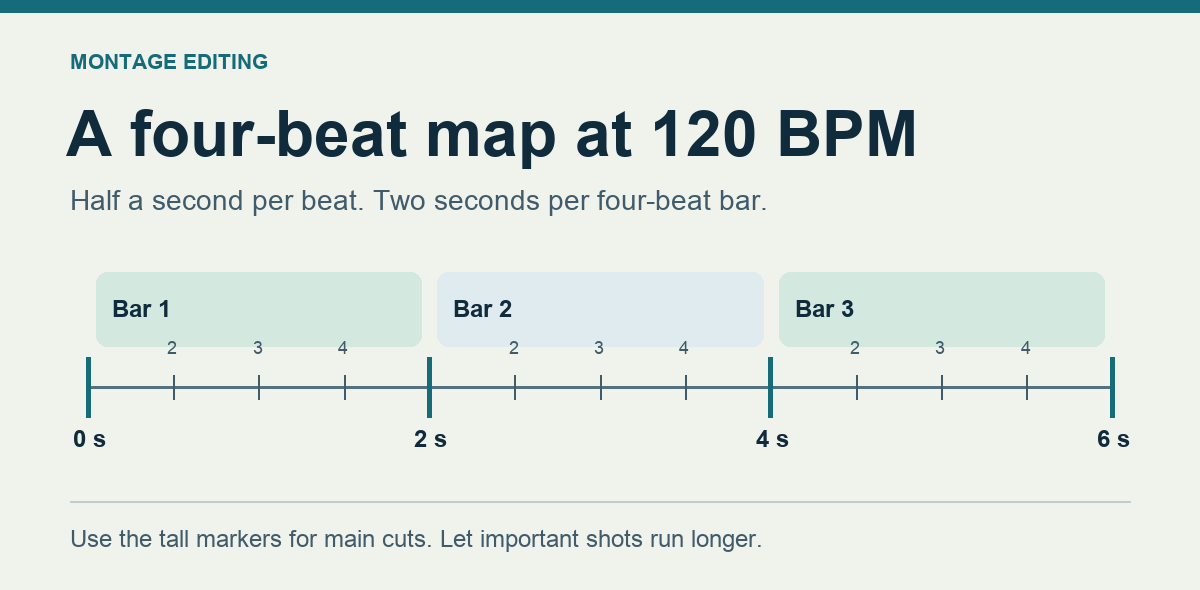
Try one cut every two or four beats. Let an important shot, such as a hand finishing a task, run a little longer. The marker tells you where a cut can land cleanly. It still helps to watch the action before deciding which marker to use.
Check your tempo if the count feels ambiguous#
If the kick and hi-hat suggest different speeds, you can get a starting BPM from your backing track with Key and BPM Finder. This particular browser tool reads an MP3 or WAV on your device, needs no sign-in, and gives an estimated tempo along with half- and double-time readings. The tool is part of the project behind this guide.
Compare the result with your tap count. If you count 60 and the tool reports 120, try putting markers two seconds apart. Listen for whether those markers catch the musical change you want. If it feels like every other marker catches the start of a phrase, use the wider spacing for your main cuts.
Check for drift before the export#
Play from your first marker and stop at one of the last musical accents. If all the markers are off by the same amount, move the group so the first marker lands on the downbeat. If the early ones line up and the late ones drift, the tempo estimate or the recording may have changed along the way. Add a fresh marker at a clear late downbeat and adjust that section by ear.
Watch one export straight through with headphones. Keep the cuts that feel intentional, even when some beats pass without a cut. If one transition feels late, loop that section and compare the frames just before and after the accent. Move that cut a frame or two at a time and stop when the picture and music feel like one action.